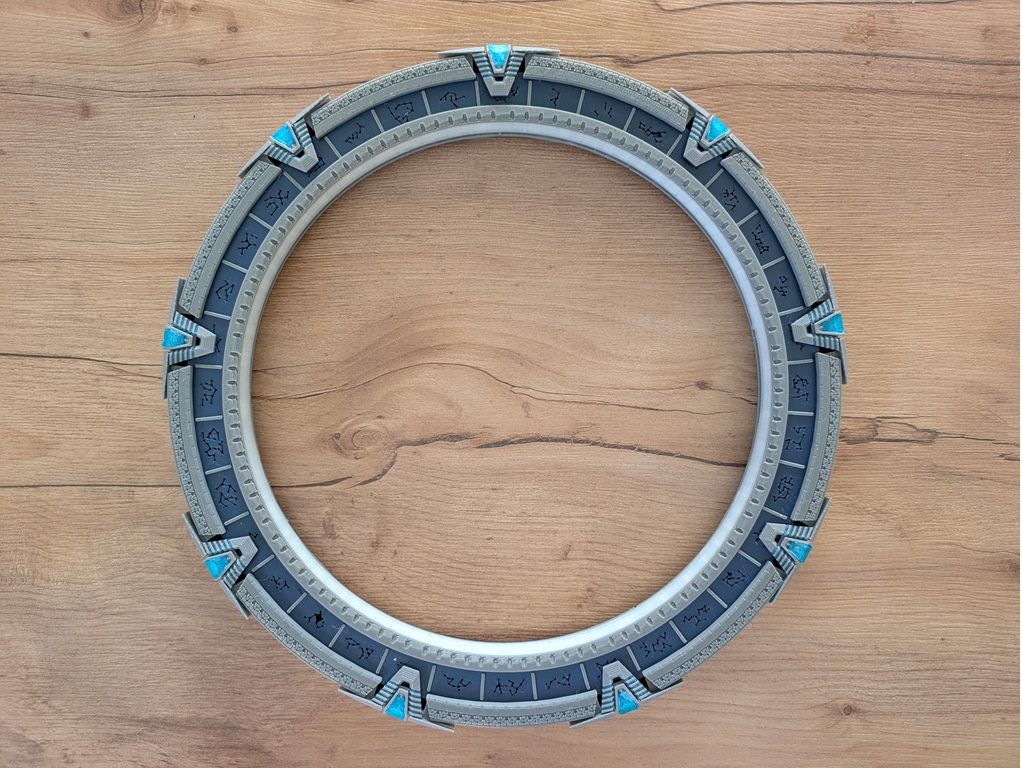
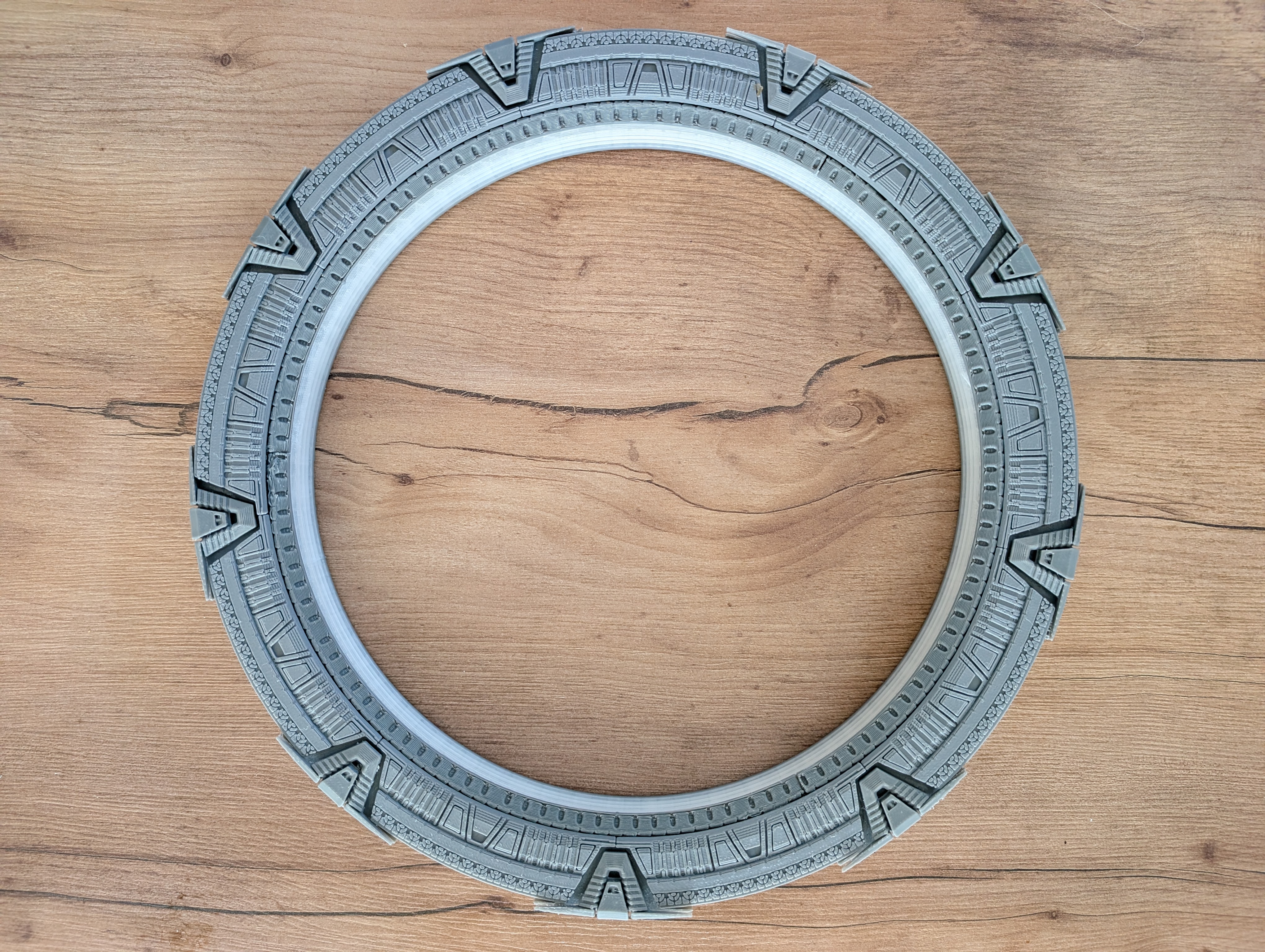
Model originally designed by Martin Taichl — just like every 15cm OpenGate gate. Visit Martin Taichl on MakerWorld.
Need help or have questions?
Join our community of builders on Discord to share your progress, ask for troubleshooting, or just chat about the project!
💬 Join the OpenGate Discord📐 Which one are you building?
These two gates are almost the same model. Same 36-glyph ring, same chevrons, same electronics, same wiring, same calibration — and above all the same core idea: you unroll one continuous LED strip inside the core ring, LEDs facing inward, three loops. Every step below applies to both. There are only two differences worth knowing:
- Size. Pegasus Medium is about 30 cm, Pegasus V2 about 20 cm. Smaller ring, less filament, less strip — nothing else changes.
- Rear face. Medium's back is made of 9 separate
gatecover_backpieces glued on one by one. V2's rear face is a single piece, so you simply skip that part of step 2. - LED strip — and this one is not symmetric. Medium accepts either the 10mm WS2812B strip it was designed around or a 5mm COB strip. V2 takes the 5mm COB only. Check this before you order anything — see the next box.
⚠️ Careful with the name "V2" on this site: here it means the gate model. Elsewhere — on the BOM and in step 4 below — "PCB V2" means a circuit board. They are unrelated: a Pegasus V2 gate runs on whichever PCB you choose, exactly like a Medium.
💡 About the LED Strip
Both gates work the same way: one single strip is unrolled inside the core ring and snakes through all three zones (chevrons, glyphs, event horizon) one after another. That is the whole principle — the rest is just how long the strip needs to be.
Pegasus Medium (~30cm) — both work. It is designed around a WS2812B strip, 96 LED/m, 10mm wide (keep about 210 LEDs on it, a little over 2m), but a 5mm COB strip does the job just as well if you prefer it.
Pegasus V2 (~20cm) — 5mm COB only. The 10mm WS2812B strip is not an option on this one. The reverse of the Medium is not true, so don't assume the two gates take the same strip: a Medium can run on COB, a V2 cannot run on 10mm.
How much strip? It depends on the ring size, so there is no fixed figure worth quoting for the V2 — unroll it around the gate first to gauge it, then cut. Step 3 explains the easiest way to do that. See the BOM for the strip references.
Medium also works just as well built for three separate strips instead — you'll just need the PCB with three LED outputs to drive them. See the BOM / PCB Compatibility page for which board to use with which wiring.
3D Printed Parts
The model is split into five groups of parts:
- 1) Core ring — printable as a single piece, or cut into 3 sections if your printer's bed is too small. Supports are required to hold it to the print bed, but they aren't part of the model itself — it's actually recommended to disable any support that doesn't emerge directly from the bed. Otherwise you'll end up with support material stuck inside the ring, which is very hard to remove afterward.
- 2) Back & front gate covers (
gatecover_back×9,gatecover_front×9) — glue each onto its dedicated notch. The 9 back covers can be glued on right after the core ring is assembled. ⚠️ The 9 front covers must wait until the very end — after the LED strip, glyph ring, and everything else are installed.
🔹 Pegasus V2: the rear face is one single piece, so there are no 9 back covers to print or glue. The 9 front covers are unchanged, and still go on last. - 3) Chevrons (9 back, monochrome + 9 front). The front chevrons look best printed in two colors — transparent blue PLA for the center, grey PLA for the base and surrounding frame. No multicolor printer, or don't want the hassle? Print the whole piece in grey and just swap to transparent blue PLA for the center section.
- 4) Glyph ring — cut into 3 sections. The symbol inserts are optional: without them, the ring simply has open cutouts where each glyph symbol would be. Printed in translucent PLA instead, the ring looks solid/opaque when unlit, and each symbol lights up and becomes visible once the gate activates.
- 5) Interior ring / event horizon — grey base, with the edge/rim printed in translucent PLA.
Two models, pick your size:
Assemble the Core Ring
Start with the core ring. If you printed it split into 3 sections, join them with cyanoacrylate (super) glue and let it fully cure before moving on.
Then glue on the 9 gatecover_back pieces and the 9 back chevrons onto their notches. If the core ring was printed in 3 pieces, this also reinforces those seams: 3 of the 9 back covers happen to land right across a joint between two sections, gluing straight over it.
🔹 Pegasus V2: no back covers here — the rear face is a single piece. Fit it, then glue the 9 back chevrons onto their notches as above. If you printed the core ring in sections, that one-piece back is also what holds the seams together.
Remember: the 9 front covers stay off for now — they only go on at the very end, in a later step.
Route the LED Strip
The LEDs must face inward, toward the center of the ring, all the way around.
Electrically, the single strip makes three full loops, one per zone, and the data always runs in this order:
- All 9 chevrons first, going anti-clockwise.
- Then the glyph channel, for a second full loop.
- Then the event horizon channel, for the third and final loop.
💡 The easy way to physically thread it: work backwards
Pushing the strip in from the start (chevrons first) works, but it is usually the harder direction. What works much better:
- Unroll the strip around the gate first, without cutting, just to see how much you actually need — then cut. How much it takes depends entirely on the ring size, so don't trust a fixed number.
- Thread the far end in first: event horizon, then the glyph channel, then double back on yourself into the chevron notch, and come out at the bottom of the gate.
You end up with the data-in end hanging out at the bottom, right where it plugs into the board — and the electrical order above is unchanged, you simply built it from the other end.
Don't worry about perfect glyph alignment. Ideally you'll land on 2 LEDs per glyph, but if you only get 1, or if some LEDs straddle two glyphs instead of landing cleanly on one, that's completely fine — the advanced calibration mode in the DHD lets you assign each LED to a glyph by hand afterward, and it works very well.
Don't worry about a perfectly flat strip either. It's better if the strip presses flush against the outer wall along its whole length, but it'll still work well even if a few LEDs end up sitting a bit loose against the plastic. To help hold it flush: use the strip's own adhesive backing to stick it down section by section as you go, or run a bead from a low-temperature hot glue gun along the channel during assembly to pin it against the outer wall.
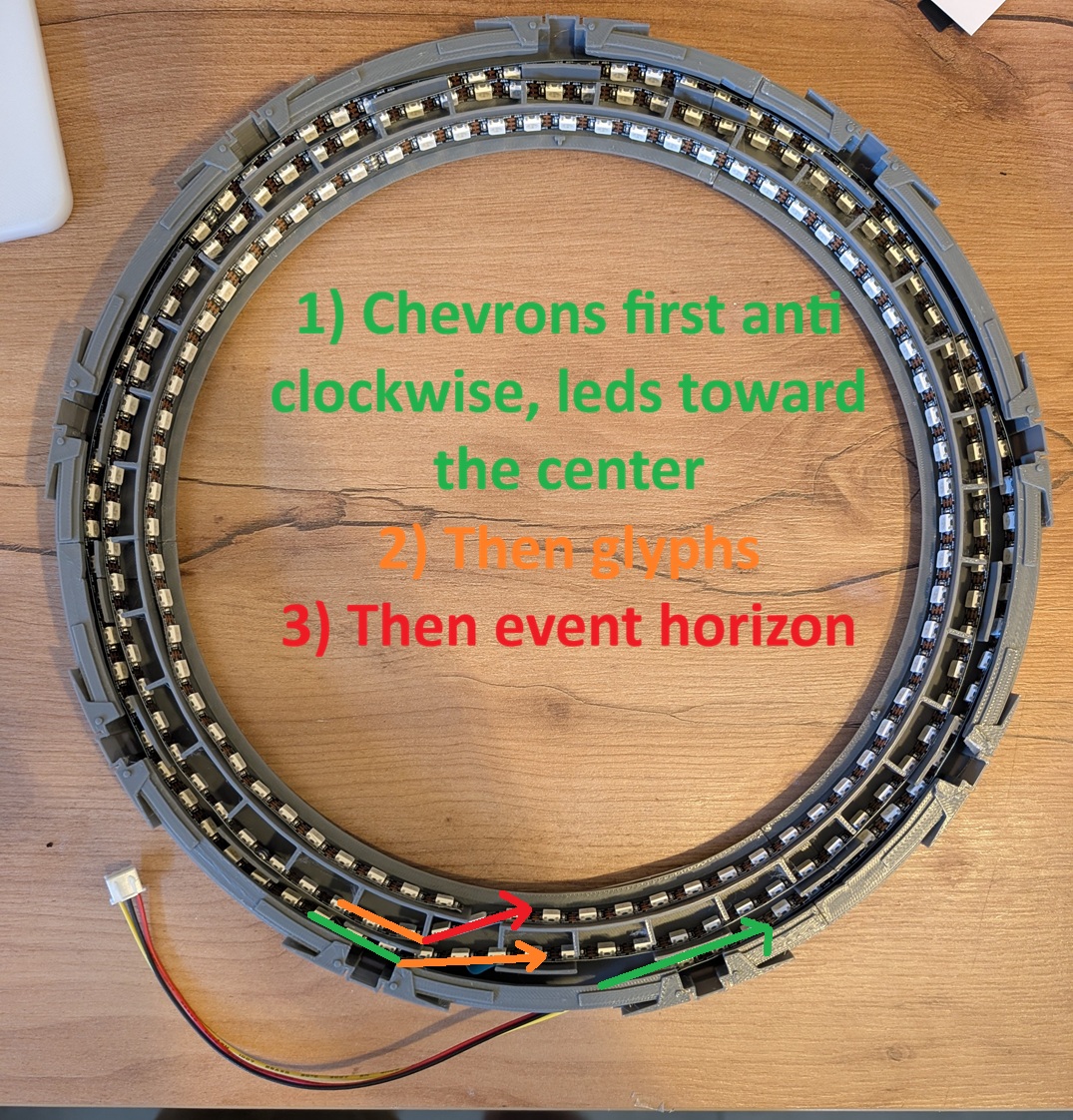
⚠️ Do NOT close up the gate before calibrating it. Calibration is much, much easier while everything is still open and visible.
Wire Up, Flash & Calibrate
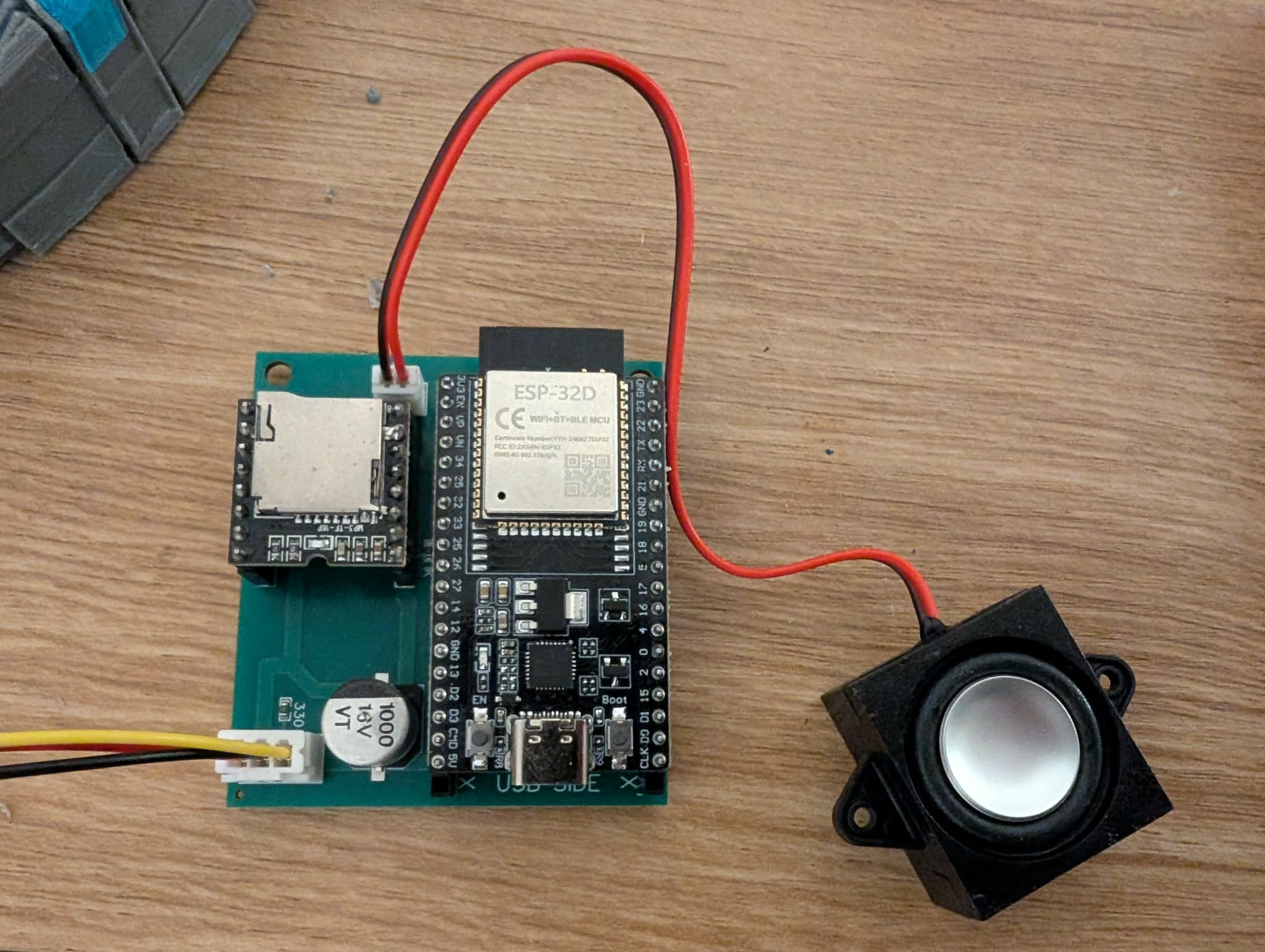
With a single strip, everything is wired on one continuous data line. Which connector that plugs into depends on the PCB you're using — same board either way as the 15cm Pegasus, see the 15cm tutorial and the BOM / PCB Compatibility page for more on the boards themselves:
- Standard PCB V1 (three LED outputs) — plug the single strip into the chevron connector specifically. All three JST connectors are populated on this board whether you use one, two, or three physical strips.
- PCB V2 or V3 (built for a single strip) — there's only one LED output to begin with, so just plug straight in.
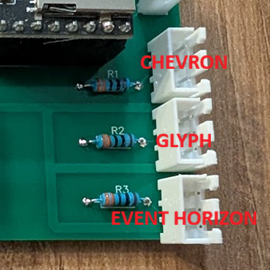
PCB V1 — which connector is which
PCB V2 — single LED output
Connect your ESP32 to your computer with a USB cable and open /flash/ in Chrome or Edge. Select Atlantis (same firmware profile as the 15cm Pegasus — gate size doesn't matter to the firmware) and Single LED strip, then connect and hold the BOOT button to start. Once flashed, the gate boots into its own Wi-Fi hotspot.
Connect to that Stargate-Setup-XXXX network (open, no password) — a setup page should open automatically, or open a browser and it'll redirect you there. Enter your home Wi-Fi details, plus your MQTT credentials if you've already joined the official network. Save & reboot: the gate connects to your Wi-Fi, and the confirmation page gives you its address — http://Stargate-<name>-XXXX.local/. Bookmark it, that's your gate's DHD from now on.
To join the official network (needed to dial other gates and receive incoming calls), a voluntary donation of at least €1 covers server costs — buymeacoffee.com/opengateproject — and you'll get your personal credentials to enter in that same setup form. Registering on the public directory to receive incoming wormholes is optional.
Open the DHD and use the LED calibration panel to check every LED lights up where you expect and, if needed, fine-tune the glyph assignment. You technically can calibrate after the gate is fully sealed up too — but it's far easier to catch and fix a wiring mistake before everything is glued shut, and doing it with the gate still open gives you a clear, direct view of every LED while you work.
Install the Glyph Ring
Place the glyph ring section(s) so that the Tau'ri (Earth) symbol lands at the 8th position, counting from the very top of the ring. This is what keeps the ring correctly aligned for Alternative dial mode — see the FAQ for the full explanation and diagram (it also covers Canonical mode, where the ring position doesn't actually matter, and how to fix it later with the calibration tool if it's off).
Front Covers & Interior Ring
Now that everything's wired, flashed, and calibrated, glue the 9 gatecover_front pieces onto their spots — this is the point they've been waiting for since step 2.
Finish by fitting the interior ring / event horizon. Tip: don't hesitate to scale it up by 3–4% in height in your slicer before printing — it makes it noticeably easier to fit into place.